

Configuration - Planner Source
|
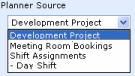
The drop down box will show all Event, Task, Issue and Custom lists in the current site that have at least 2 date columns. It will also show any Public views defined on that list by indenting the view name with a "-". For example in the screenshot to the right the "Shift Assignments" list has a view called "Day Shift" |
 |
|---|---|
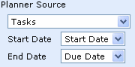
| If you choose a list based on an Event List template then the
Start and End dates will be chosen for your automatically. If you
chose a list based on another template then you have to select the date
columns to use for the Start and End dates.
Note - Lists will only be included in the options if they have at least 2 date columns. |
|
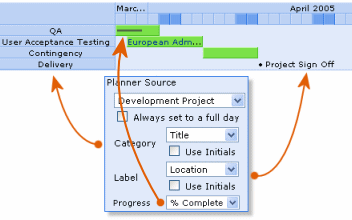
| You can select which fields are used for the Category column
(except for the Classic planner style) and the Label. Labels will be displayed inside a Timeline or after a Milestone Optionally, you can also display a progress bar by selecting a % field from your list.
|
 |
|
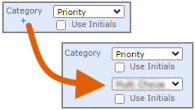
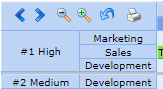
When using the By Category or Gantt styles you can optionally choose a 2nd Category field. Click the + plus icon under the first Cateogrory Label and choose a 2nd field using the drop down that appears. Note - this feature was added in version 4.1, October 2021. |
|
| If you choose the Use Initials option on the Category or Label fields then the full text will be reduced to Initials - useful if space is limited or the text represents names or well understood abbreviations. A tooltip will still display the full text. |
 |
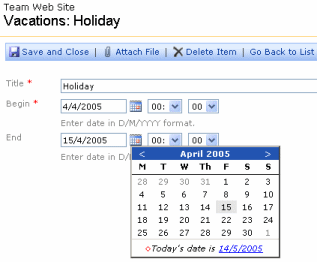
| The Always set to a full day option is useful
in situations were only the date is set but you want that to
represent the end of the day. For example in a staff absences list
the users will likely only set the first day and last day of a
holiday - leaving the time component set to 00:00 (midnight) - as
shown here :-
Without this option selected a Gantt chart will appear to be short one day :-
With this option selected the Timeline will reflect the period from 4 April 2005 00:00:00 (midnight) until 15 April 2005 23:59:59 :-
|
|