


FAQ - Printing
- How can I print the chart?
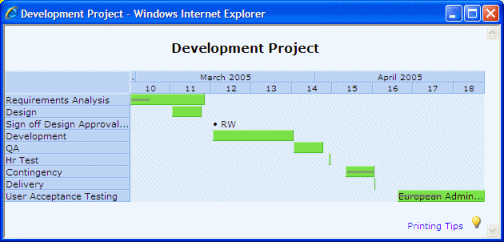
If you have the Control Panel turned on you can click the Print button to open a printer friendly page.
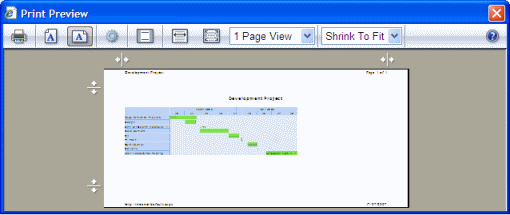
If you right click on the page and select Print Preview you will have the option of fine-tuning the page before printing.
You can change between Portrait and Landscape, add or remove the Headers and Footers and zoom in to show a larger chart ("Shrink To Fit" drop down).

- Printing using IE6
These instructions are for IE7. IE6 is slightly different - you can't use the context menu (right click) to access print preview and instead have to use the File > Print Preview. Also IE6 doesn't allow you to scale the print out so you only have the option of setting the orientation (portrait/landscape) to make the printout fit correctly.
- My printouts look strange - what's going on?
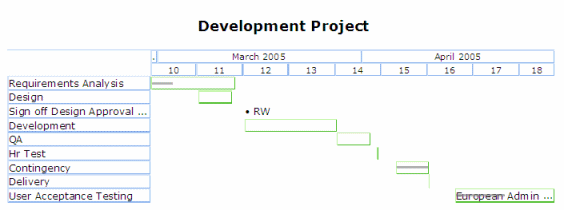
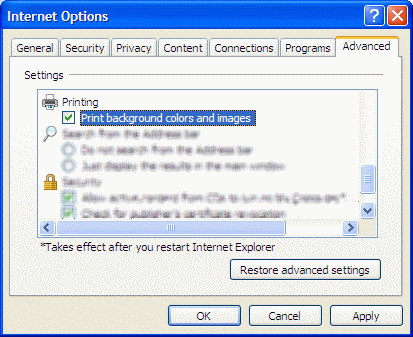
To print correctly SharePoint Planner needs to have Internet Explorers "Print background colors and images" option turned on.
This picture shows and example of how a chart appears if this option is not enabled - only the outline of the chart is visible.
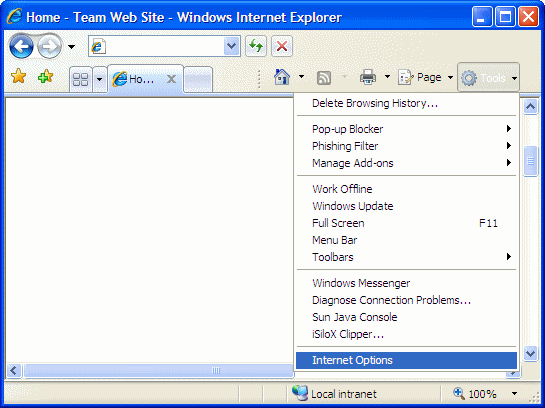
To turn on this option from Internet Explorer select Tools > Internet Options
Click the Advanced tab, scroll down to the Printing section, check "Print background colors and images" and select OK
- I still can't get it to print out quite how I want, are there any other options.
You could take a Print Screen of the page and paste the resulting image into MS Word or similar and then use the picture tools to crop and size the picture to fit.