

FAQ - Create A View
The key to using SharePoint Reminder flexibly is to understand how to create SharePoint Views.
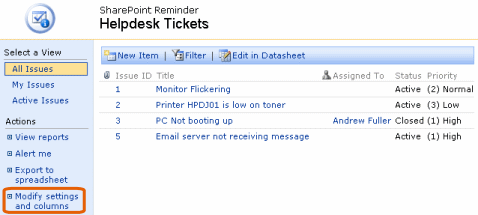
In this example our organisations Helpdesk team use a SharePoint Issues list to organise their work.
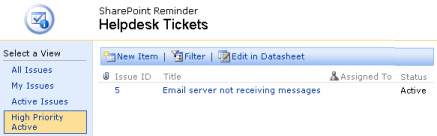
Here we are going to create a new view that will only show High Priority and Active issues. i.e. Those jobs that have to be done Right Now!.
 |
This shows the default "All Issues" view of our list. Click Modify settings and columns | |
|
|
||
|
|
Scroll towards the bottom of the page until you find
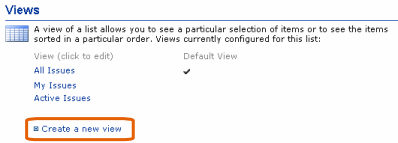
the Views section and click on Create a new view
|
|
|
|
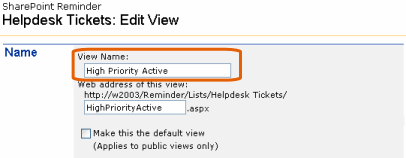
Enter a suitable name such as "High Priority Active" Leave Audience set to Public View - as this view will be useful to others in the team |
 |
|
|
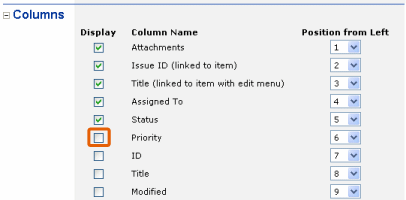
Uncheck the Priority columns Display checkbox
- we already know from the title that all items in this view
will be High Priority
|
 |
|
|
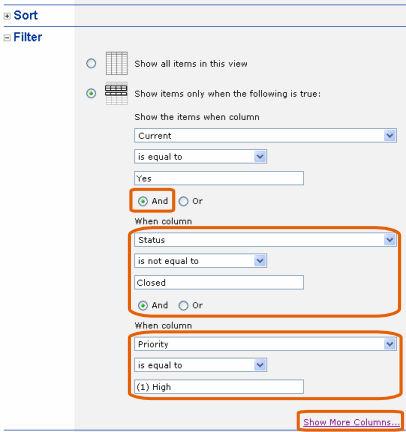
Leave the Sort section as is. We need to add 2 new
elements to the Filter Note - Leave the Current = Yes filter that is already present. This is to ensure that we don't see old copies of Issues that have been updated in our list. First add a filter that ensures the column Status is NOT equal to Close You will need to click on Show More Columns to get more space for the next part of the filter Add a filter that ensures the Priority column is equal to "(1) High"
|
 |
|
|
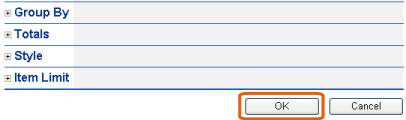
Leave the other sections as they are and click OK
|
|
|
We now have a new view that shows only High Priority issues that have not yet been closed. Compare this list with the All Issues view at the top of the page.
More information and tips can be found on the SharePoint Ideas section of our website. |
|