


SharePoint 2010 & 2013 Reminder Service - Domain Account
The Reminder Service is setup to use the local NT Authority\System account upon installation, however this local account can only give the Reminder Service permission to operate on the local server
Therefore, if your SharePoint web server and Microsoft SQL Server database are on separate servers then you will need to set the Reminder Service to run as a domain account to give it permission to access your database.
If you have multiple Web Front Ends (aka a Web Farm) in your SharePoint configuration you must also follow these steps to ensure TCP Remoting is correctly configured.
Note - If you are using an MSDE database or SQL Server on the same physical server that SharePoint is installed on then these extra configuration steps are not necessary, please continue using the default NT AUTHORITY\System account.
You will need to set the SharePoint Reminder Service to run under a Domain Account with the following permissions :-
-
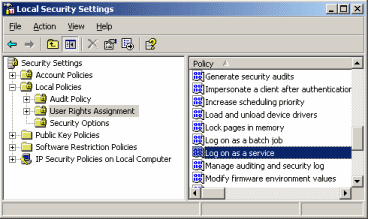
Has Log On As A Service rights on your Server
-
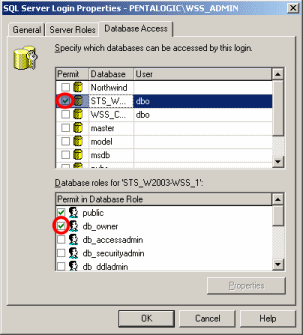
Has db_Owner permissions on the Configuration and all Content databases
When installing SharePoint you will have already setup a Domain Account for the Windows SharePoint Timer Service with the last 3 permissions,
As new content databases are created (either by an Administrator or automatically) SharePoint will give this service the appropriate access permissions - if you chose not to use the same account for Reminder you must ensure that you manually assign permissions whenever new content databases are created.
For these reasons the easiest way is use the same account for SharePoint Reminder that SharePoint Timer Service itself uses - however you will still have to give permission to access the programs installation directory and registry key.
Otherwise, please continue here if you wish to use a dedicated domain account just for the Reminder Service.
Setting the Reminder Service to use the same account as the SharePoint Timer Service
-
Open the Services MMC (Administrative Tools > Services)
-
Find the Windows SharePoint Services Timer service, right click and select Properties
-
Click the Log On tab
-
Note the domain\username in This account - you will also need the password for this account
-
Now find the SharePoint Reminder Service, right click and select Properties.
-
Click the Log On tab and enter the domain, username and password found above and select OK
-
Give this account
-
Restart the SharePoint Reminder Service
Setting the Reminder Service to use a dedicated domain account.
-
Create a domain account for the service - use the usual options for password change/expiry etc.
-
Give this account the permissions detailed below
-
Has Log On As A Service rights on your Server
-
Has db_Owner permissions on the Configuration and all Content databases
-
Set the SharePoint Reminder Service to Log On as this account
-
Restart the SharePoint Reminder Service
Account Permissions Required
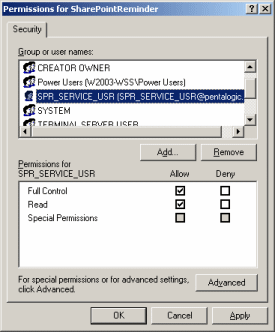
Access to the Registry Key Branch
|
The SharePoint Reminder services needs read and write access to a branch of the Registry. It uses this to store some internal configuration properties upon startup such as which TCP/IP port to use for Remoting.
|
|
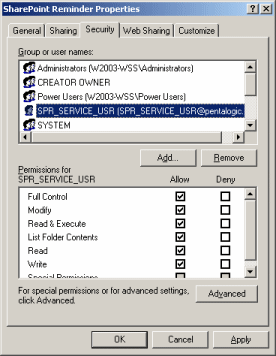
Access to the Installation Directory
|
The SharePoint Reminder services needs read and
write access to a number of files in its installation directory.
By default the program is installed to
|
|
SharePoint Administration Rights
|
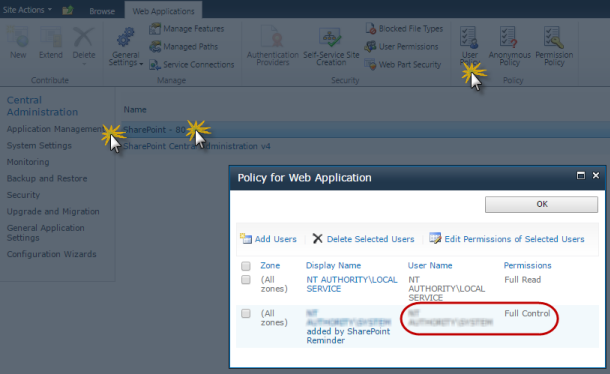
You must give the domain account you have setup Full Control permission for any Web Applications you intend to use the Reminder Web Parts in.
You can do this by
using
the following STSADM command :- Alternatively you can add the SharePoint Central Administration > Application Management > Manage web applications > [Choose your web app] > User Policy
|
|
|
|
The SharePoint Reminder services needs access to the Configuration Database and all Content Databases. If you have followed the recommendation above to use the same Domain Account that the SharePoint Central Administration utility runs under then you do not need to follow these steps. Note - If you do not use the same account you will have to ensure that these steps are followed whenever a new Content Database is added.
|
|
If you have multiple Web Front Ends (aka a Web Farm) in your SharePoint configuration you must also follow these steps to ensure TCP Remoting is correctly configured.